Scheduled Job Action - Grant Anniversary
Overview
The Grant Anniversary Action is used to evaluate a Date-type Member Attribute (such as Member's birthday, their last purchase date, or their enrollment date, for example). The platform will select all Members that meet the meet the date criteria. You can then configure the Scheduled Job to perform one or both of the following actions:
-
Grant a Reward, Offer, or Gift Card.
-
Send a email message.
Typically, a Grant Anniversary Scheduled Job should be scheduled to run once daily.
This Scheduled Job Action type can be used in conjunction with one or more Segments. When you add a Segment to the Scheduled Job, only Members in that Segment are eligible to be part of the Scheduled Job's audience. See Define Scheduled Job Eligibility for more information on adding Segments to the Scheduled Job.
Date Evaluation
The Grant Anniversary Action provides two components that control how to evaluate the Date-type Attribute: the Date Search Strategy and Padding Days.
The Date Search Strategy is used to determine whether you want to look for a Future date (X number of days from now, such as an upcoming birthday) or a Past date (X number of days ago, such as a Member's last purchase date).
If using a Future strategy, the platform will evaluate only the month and day components of the Date Attribute. For example, let's say you're creating a birthday promotion. You typically want to know only the Member's birthday (month and day), and not the year they were born.
If using a Past strategy, the platform will evaluate the year, month, and day components. For example, let's say you want to target Members whose last purchase was 90 days ago. You need to know the full date to correctly determine when to send the message.
The Padding Days value can be used to create a time period relative to the value in the Date-type Member Attribute. You can leave this field blank if you want the selected Date-type Attribute to match the date the Scheduled Job runs (that is, "today").
If using a Future strategy, the Padding Days value should be a positive number. Continuing the above birthday promotion example, let's say you want to send the message three days before the Member's birthday. You would select Future as the strategy, and enter a value of "3" for the Padding Days.
If using a Past strategy, the Padding Days value should be a negative number. Continuing the above post-purchase example, let's say you want to send a message 90 days after the Member's last purchase date. You would select Past as the strategy, and enter a value of "-90" for the Padding Days.
Note that the date evaluation always uses an "equal to" operator, meaning that the platform will select the Members whose date value is equal to the calculation (for example, "birthdate is equal to 7 days from today"). You can't use "greater than" or "less than" operators to select a range of dates, such as "birthdate is less than 7 days from today."
Parameters
This Action has the following parameters:
-
Content Type: Optionally, select the type of asset to grant to the Member: Reward, Offer, or Gift Card. Select No Content if you don't want to grant an asset to a Member.
-
Content: If you selected an asset type above, select the specific asset to grant to Members.
-
Send Messages: To send an email message to the Members in the Job's audience, select Send Messages from this drop-down menu.
Email Platform
The Loyalty platform integrates with several Zeta products for email sending, as well as with external platforms.
-
Send Messages Via: If you selected Send Messages above, select the deployment platform. The configuration options for the different platforms are described below.
Loyalty Message
Note: This feature is intended only for clients using Loyalty's legacy email platform.
If sending a message via Loyalty, this Action has the following parameters:
-
Messages: Select one or more Messages.
-
Date Attribute: Select a Date-type Member Attribute to evaluate.
-
Padding Days: Enter the Padding Days value (see above for more information).
-
Date Search Strategy: Select the desired Date Search Strategy: Past or Future (see above for more information).
-
Refresh Segments: Select one of the following Segment refresh options:
-
Follow Segment Member refresh threshold in Program Settings
-
Every time Job runs
-
Cheetah Digital
If sending a message via Cheetah Digital, this Action has the following parameters:
-
Connection Profile: Select a Cheetah Digital Connection Profile.
-
Target Table: Enter the name of the Campaign source table within Cheetah Digital.
-
Campaign ID: Enter the "Running Campaign ID" of the launched Cheetah Digital Campaign.
-
Content Sources: Optionally, select one or more Content Sources.
Note: Content Sources are an optional feature designed to accommodate more advanced use cases, such as sending a list of multiple Offers to Cheetah Digital for use in a Looping Block.
-
Date Attribute: Select a Date-type Member Attribute to evaluate.
-
Padding Days: Enter the Padding Days value (see above for more information).
-
Date Search Strategy: Select the desired Date Search Strategy: Past or Future (see above for more information).
-
Refresh Segments: Select one of the following Segment refresh options:
-
Follow Segment Member refresh threshold in Program Settings
-
Every time Job runs
-
Personalization Details
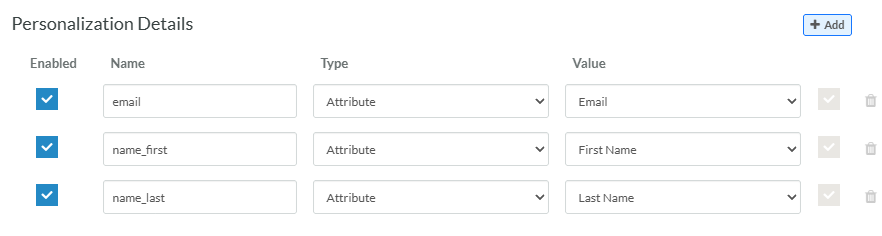
You may need to add custom parameters within the Personalization Details section if, for example, you're using values from Loyalty to populate Personalization Fields within the email message content. To use personalization, you must know the name of the desired field as it appears in the Merge Symbol in the Cheetah Digital content. You must use the internal name of the field, and not its display name. For example, let's say you have a message that uses first name and last name values to personalize the message. You would need to add those Merge Symbols to the email content in Cheetah Digital, like this:
-
Hello, {(name_first)} {(name_last)}
The values in these Merge Symbols must reference existing fields in the Campaign's source table in Cheetah Digital. Otherwise, the Cheetah Digital application will display an error message when you try to save or launch the Campaign.
To define a personalization field, click Add within the Personalization Details section, then enter the following information.
-
Check Enabled.
-
Within the Name field, enter the value as used in the Merge Symbols (without the brackets).
-
From the Type drop-down menu, select one of the following:
-
Attribute: Use a Loyalty Member Attribute. From the Value drop-down menu, select the desired Member Attribute. The value of the selected Member Attribute will be passed in the API call to Cheetah Digital.
-
Metric: Use a Loyalty Member Metric. From the Value drop-down menu, select the desired Member Metric. The current balance of the selected Member Metric will be passed in the API call to Cheetah Digital.
-
Content Token: Use a Loyalty Content Token. From the Value drop-down menu, select the desired Content Token. The value of the selected Content Token will be passed in the API call to Cheetah Digital.
-
Advanced: Enter an expression in the Value field to derive a value.
-
Repeat the above steps as needed to define additional personalization fields.
External Message
If sending a message via some other email platform, this Action has the following parameters:
-
HTTP Operation: Select an HTTP API Template.
-
Date Attribute: Select a Date-type Member Attribute to evaluate.
-
Padding Days: Enter the Padding Days value (see above for more information).
-
Date Search Strategy: Select the desired Date Search Strategy: Past or Future (see above for more information).
-
Refresh Segments: Select one of the following Segment refresh options:
-
Follow Segment Member refresh threshold in Program Settings
-
Every time Job runs
-
This Action supports the use of custom parameters. To define a custom parameter, click Add within the Custom Parameters section, then enter the following information.
-
Check Enabled.
-
Within the Name , enter the name of the parameter.
-
In the Value field, enter the parameter value.
Repeat this step as needed to define additional custom parameters.
Salesforce
If sending a message via Salesforce, this Action has the following parameters:
-
Connection Profile: Select a Salesforce Marketing Cloud Connection Profile.
-
Method: Select an HTTP method: GET, PUT, POST, or DELETE.
-
URL: Enter the webhook endpoint.
-
Date Attribute: Select a Date-type Member Attribute to evaluate.
-
Padding Days: Enter the Padding Days value (see above for more information).
-
Date Search Strategy: Select the desired Date Search Strategy: Past or Future (see above for more information).
-
Refresh Segments: Select one of the following Segment refresh options:
-
Follow Segment Member refresh threshold in Program Settings
-
Every time Job runs
-
Additional Parameters
The URL Parameters section is used to define the URL parameters in the Salesforce API call.
To define a URL parameter, click Add within the URL Parameters section, then enter the following information. Repeat this step as needed to define additional URL parameters.
-
Check Enabled.
-
Within the Name field, enter the name of the parameter.
-
Value: Enter either:
-
A static value to assign to every Member.
-
A Content Token or a Groovy expression to populate this parameter.
-
-
If you entered a static Value, check Static. Otherwise, uncheck Static.
The Query Parameter, Request Header, and Form-Data / Request Body sections are used to define additional parameters for the API call. Repeat the above steps as needed to define these different types of parameters.
Selligent
If sending a message via Selligent, this Action has the following parameters:
-
Connection Profile: Select a Selligent Connection Profile.
-
Journey: Select the applicable Selligent Transactional Journey (Journey API name) to trigger. This selection represents the Journey sending out the transactional messages, such as welcome, reward, or birthday messages, for example.
-
Language: Select the language that Selligent should use when sending the message. Note that only one language can be selected. If you need to send transactional messages for multiple languages, you must create separate Scheduled Jobs for each language.
-
Date Attribute: Select a Date-type Member Attribute to evaluate.
-
Padding Days: Enter the Padding Days value (see above for more information).
-
Date Search Strategy: Select the desired Date Search Strategy: Past or Future (see above for more information).
-
Refresh Segments: Select one of the following Segment refresh options:
-
Follow Segment Member refresh threshold in Program Settings
-
Every time Job runs
-
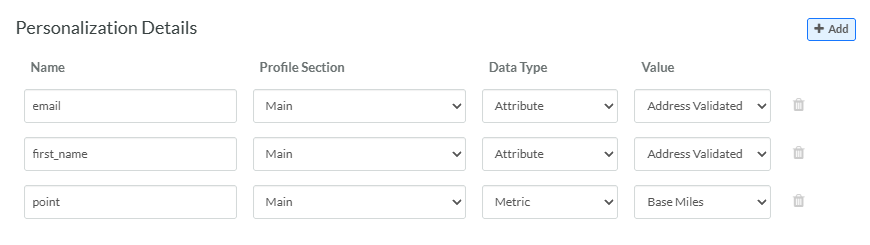
Personalization Details
You may need to add custom parameters within the Personalization Details section if, for example, you're using values from Loyalty to populate Personalization Fields within the Selligent email message content.
To define a personalization field, click Add within the Personalization Details section, then enter the following information.
-
Within the Name , enter a field name from the Selligent main audience or extended Loyalty profile.
-
From the Profile Section drop-down menu, select either the Selligent Main audience (scope MASTER) or the Extended Loyalty profile( scope ENGAGE_LOYALTY).
Note: The Selligent main audience is determined by the message used in the Transactional Journey.
-
From the Data Type drop-down menu, select one of the following:
-
Attribute: Use a Loyalty Member Attribute. From the Value drop-down menu, select the desired Member Attribute. The value of the selected Member Attribute will be passed in the API call to Selligent.
-
Metric: Use a Loyalty Member Metric. From the Value drop-down menu, select the desired Member Metric. The current balance of the selected Member Metric will be passed in the API call to Selligent.
-
Content Token: Use a Loyalty Content Token. From the Value drop-down menu, select the desired Content Token. The value of the selected Content Token will be passed in the API call to Selligent
-
Repeat the above steps as needed to define additional personalization fields.